As we look to expand our development team these past few weeks, we've pushed off major feature pushes and focused on iterative improvements across the app.
Improved
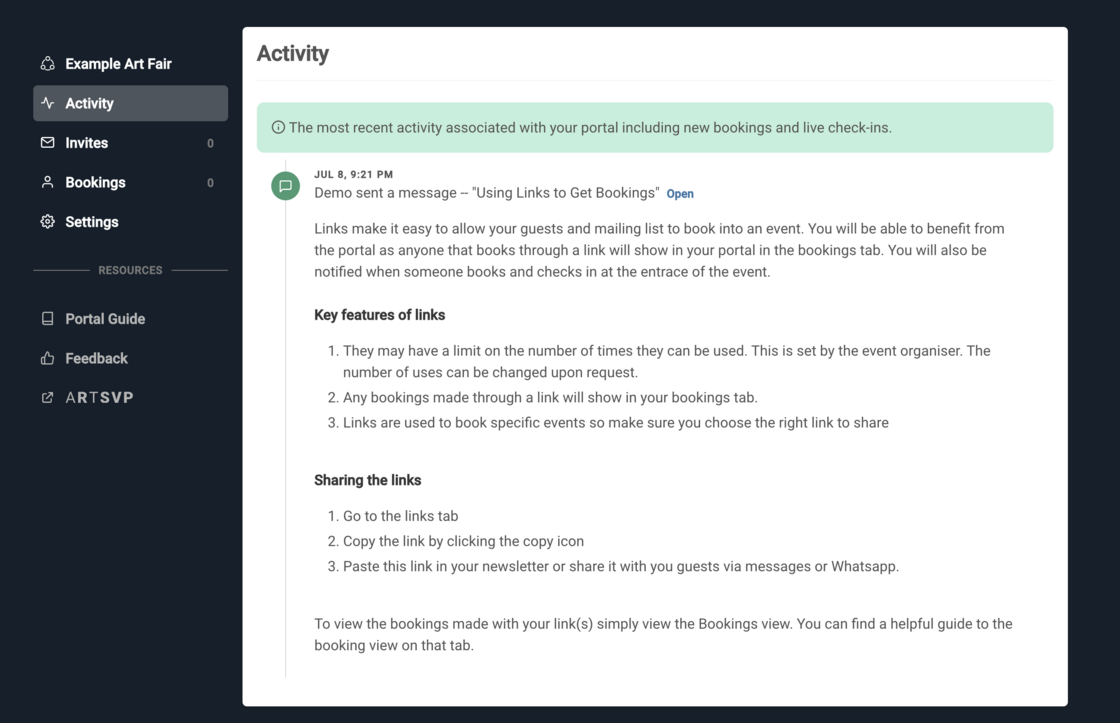
In the portal activity feed, messages sent by you to your exhibitors are now available for viewing.
Cloudflare Turnstile has been implemented across account creation and update to better secure your accounts against attacks by bots and scripts
Additional events can now be booked easily via a collection after successfully booking for another event in the collection.
Starter plans now have access to 3 unique team members with varying roles.
Mailing list information included with API calls for bookings.
Bookings can now be scoped by ones that include extras
Fixed
Stripe Elements fix for bookings made through a collection that include a paid ticket
Invites view fix for collections (numbers and counts)
Introducing the ARTSVP Collective & Declining Invites
This week we're launching multiple improvements to your guest's invite experience and exploring new collaborations in the art world with the ARTSVP Collective!
New
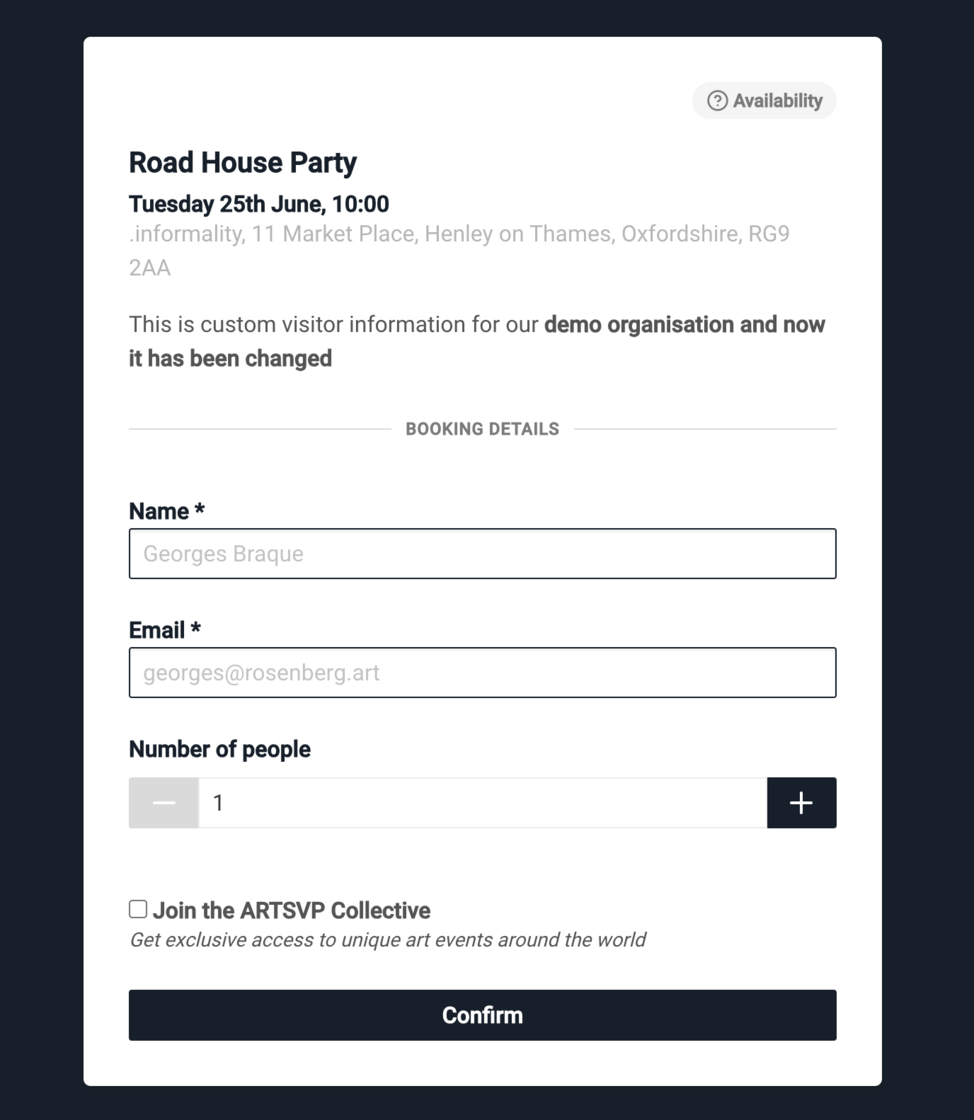
The ARTSVP Collective
We've recently started exciting conversations with Art Fairs, galleries and professionals on how we can bring further benefits and experiences to your guests through the ARTSVP collective. Launching alongside our Starter plan, Professional users have the option of enabling or disabling this feature, guests can join for exclusive access to unique art events around the world. If you're interested in collaborating with us, get in touch!
New
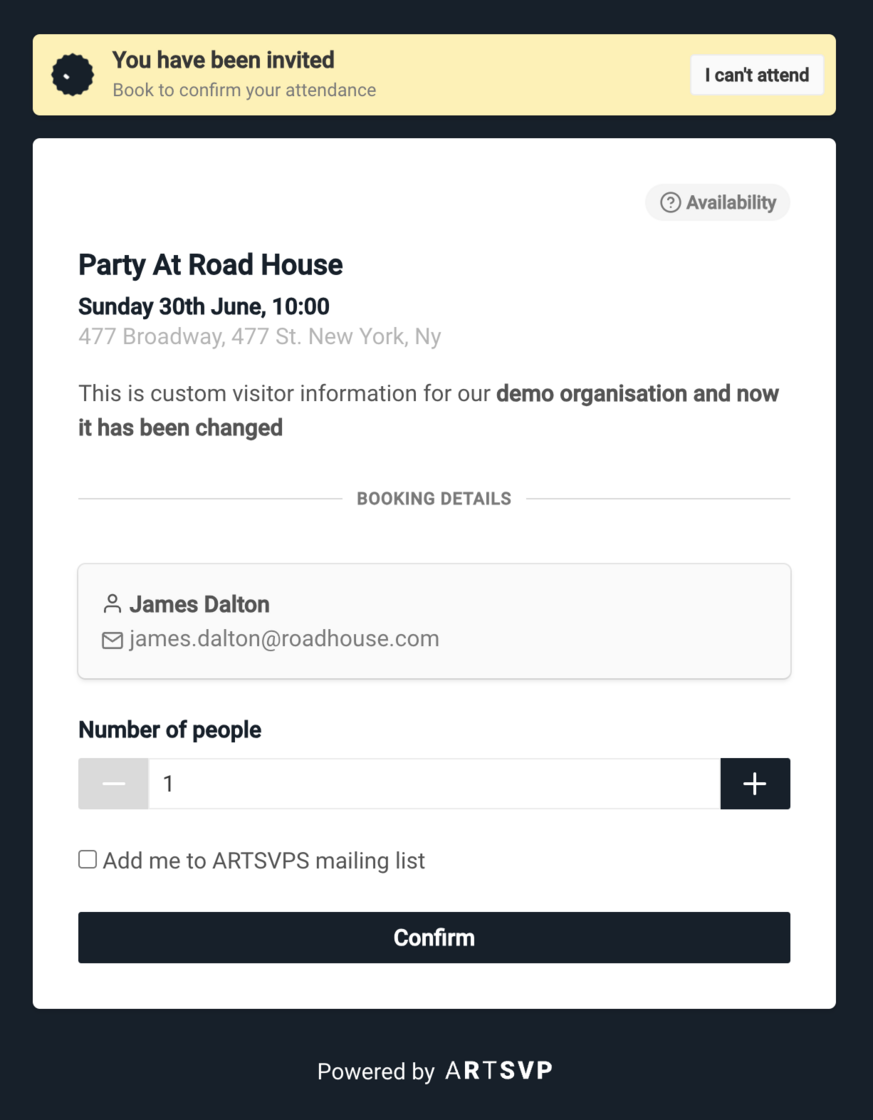
Declining Invites
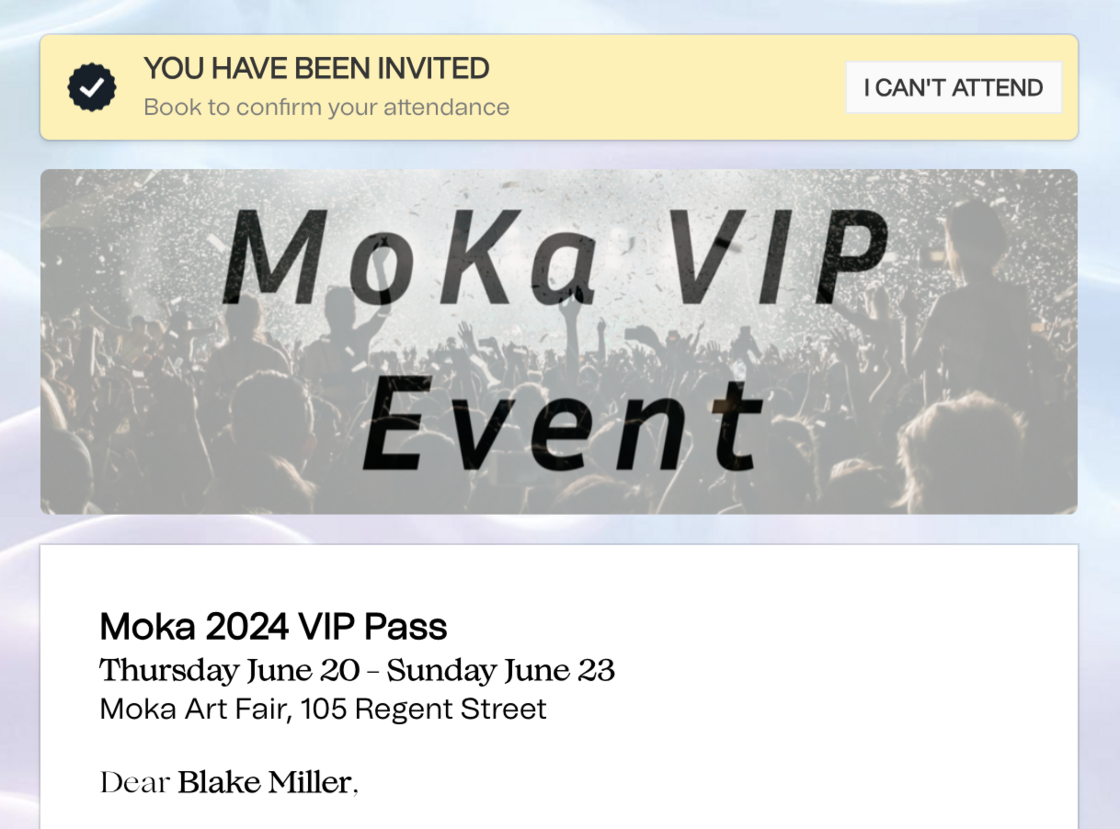
Estimating attendees has always been tricky business, but with our new feature of declining invites you'll get a better understanding for your day of attendee numbers. This simple addition allows you to be more efficient and organised in managing your invites, while giving flexibility to your guests on whether or not they want to attend. (A decline can always be rescinded by the guest)
New
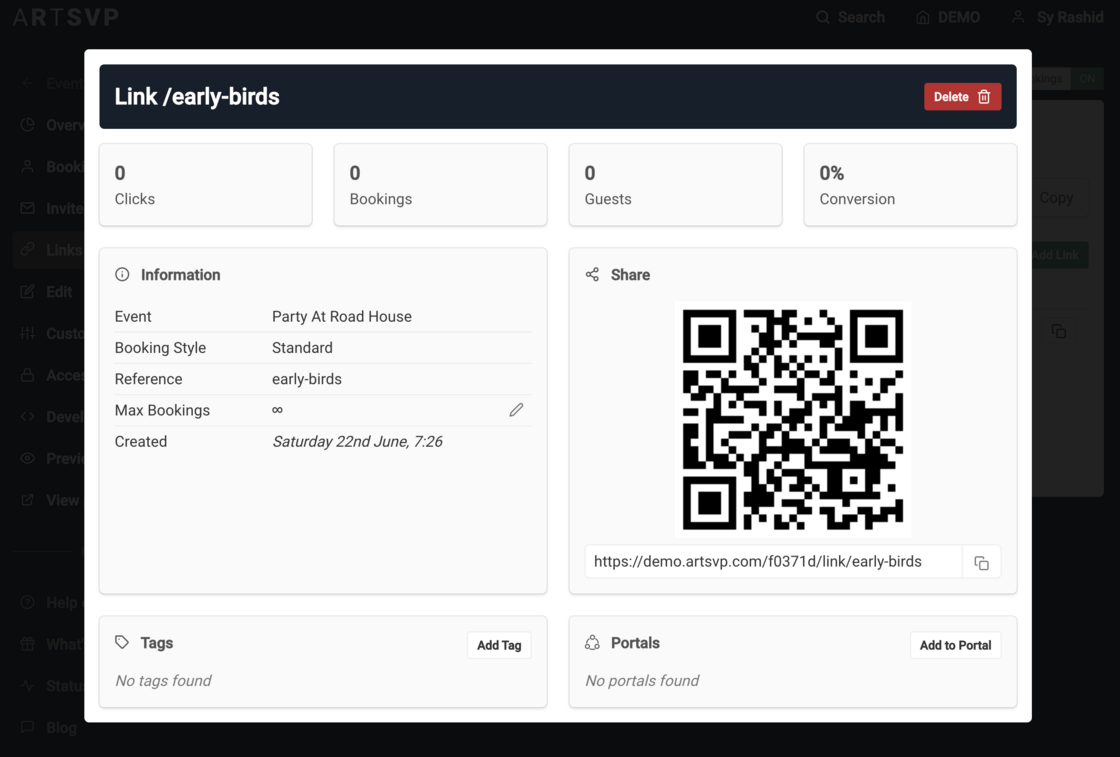
Booking Link QR Codes
Booking links are now more shareable than ever. We've added unique QR codes for each booking link that can be added into all of your communications or quickly printed for day of bookings specific to a booking link.
Improved
Bookings in the past can now be archived
Improved language and CTAs on invite emails
Improved performance handling high traffic booking conditions
Improved database hygiene to bolster site speed and performance
Fixed
Resolve 500 errors for certain pages when not logged in
Update landing page links
Fix from names for portal emails
Portal Messaging, Declining Invites, Improved UI
New
Declining Invites available for Guests
Guests are now able to decline invites they've received. This will prevent further emails being sent to the guest via the invite. Guests can also change their mind at any time and activate the invite once more using the original invite link.
On the management side, teams will now have better insight on expected numbers and guest management via the available and declined tabs on any of the invites pages for events and collections.
New
Message Portals in Portal Groups & More
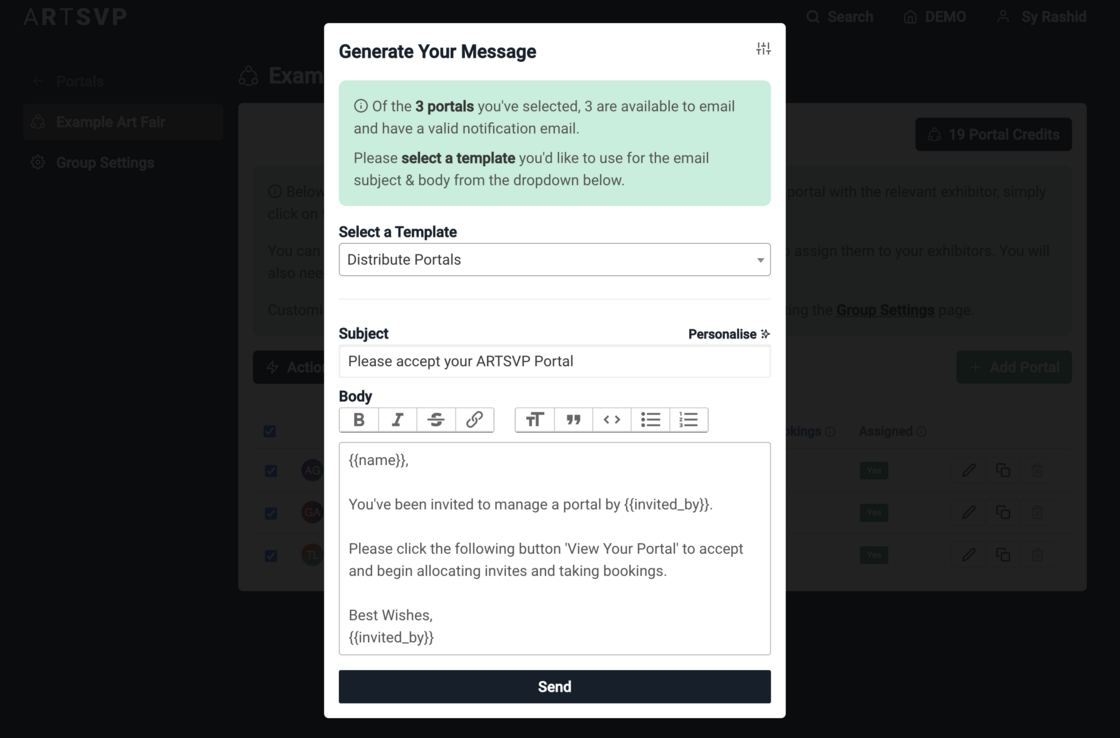
Portal groups have received a bundle of new features to improve portal management and communication. The biggest addition is the ability to send any portals with a notification email a message in batches. There is already a predefined template available for use and custom messages are also available.
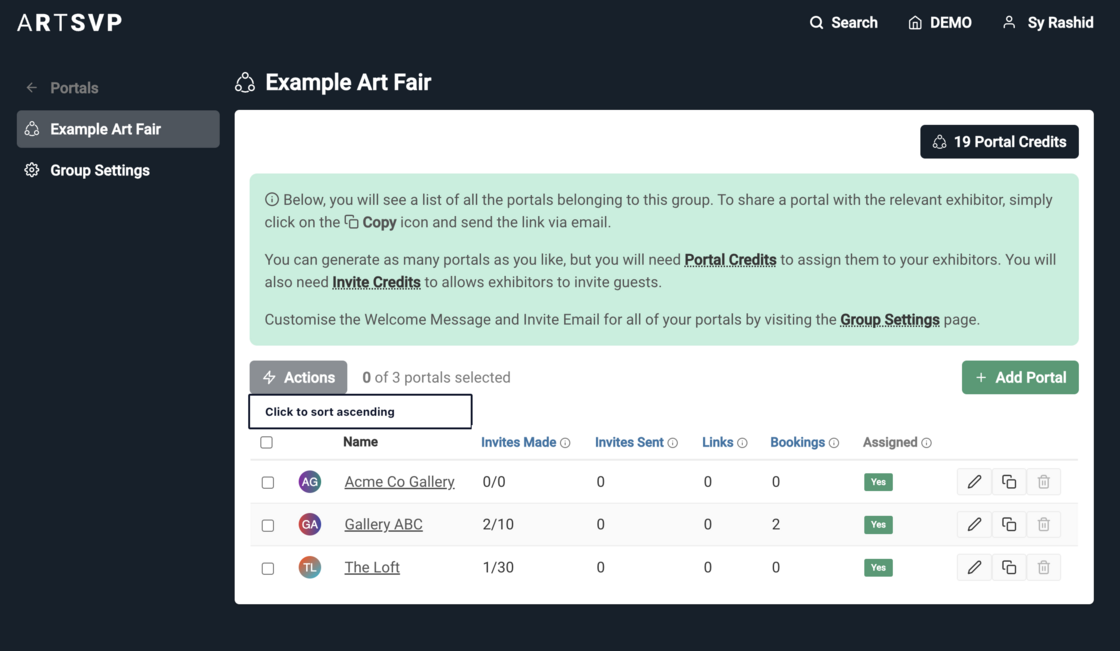
In addition to portal messaging, bulk portal deletion is now possible pending they have not been assigned. Finally the portal groups page itself has received a polish with the ability to sort portals by name, number of invites, invites sent, links, and bookings making portal management even easier than before.
Improved
Invite Admin Redesign
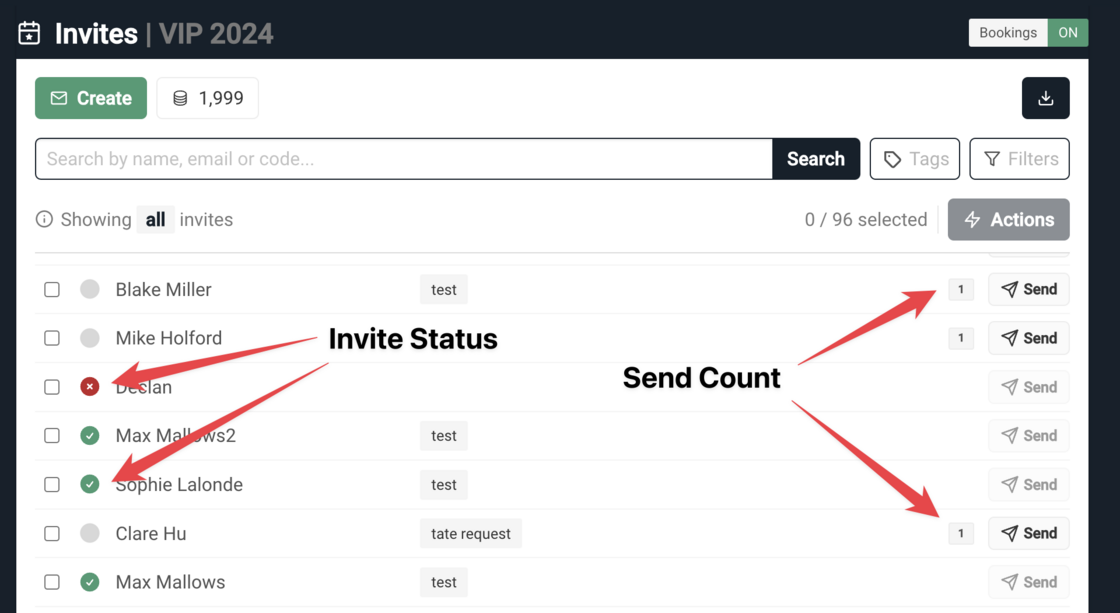
We've moved around some components within the invites view to make it easier to work with. With the addition of 'declined' invites, we now show the invite status (Not Used, Declined, Completed) alongside the invite.
Improved
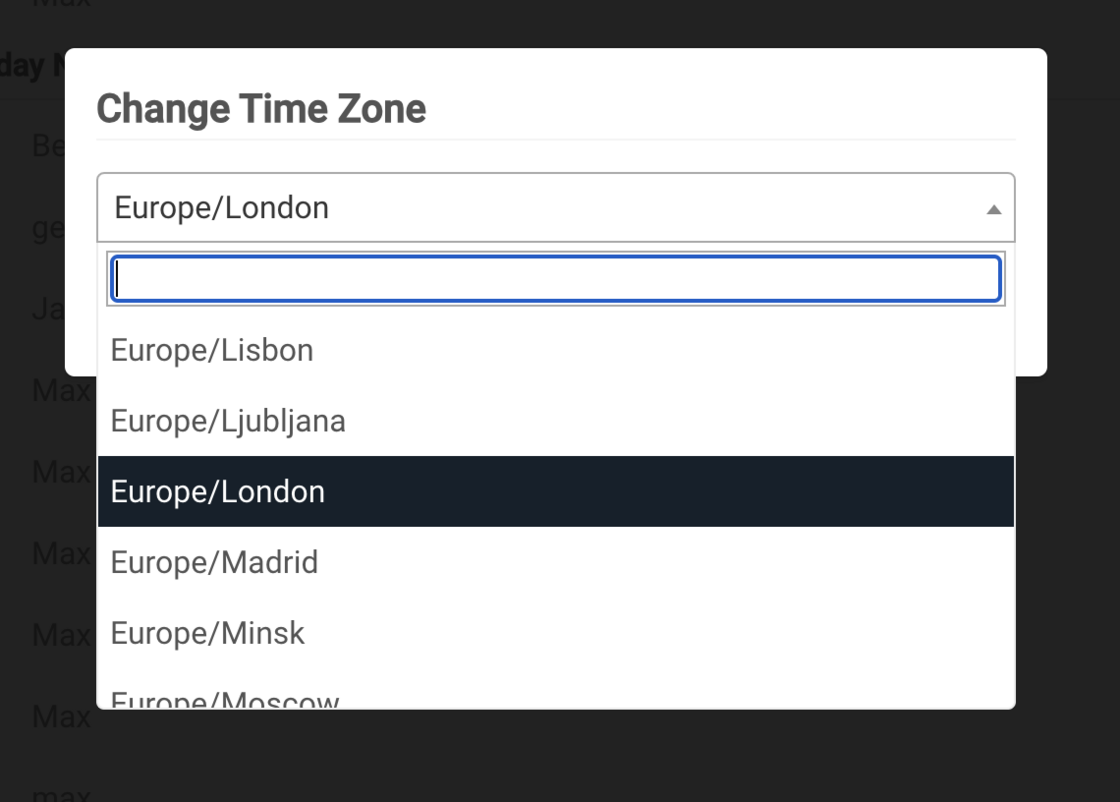
Updated Time Zone Picker
We've made the ability to change time zone on your bookings view a lot quicker including quick search options.
Improved
Archiving old bookings
You now have the ability to archive all bookings, no matter if they are in the past or future. If a booking is confirmed and you attempt to archive it, we will automatically cancel the booking silently (no guest notification)
Fixed
Turning on/off requesting guest details
Ability to change the time of your booking
Some guests were not being generated for bookings
May '24 Improvements
Improved
Gift Aid Use & Language
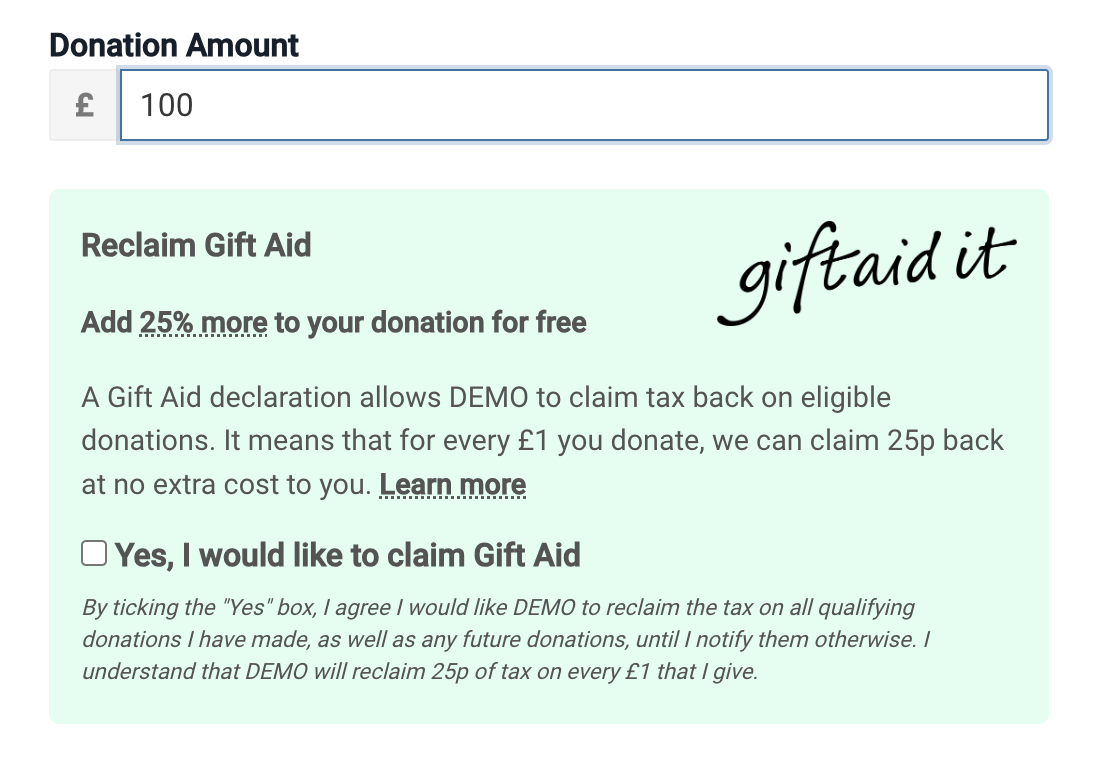
We have improved the copy and language on the new Gift Aid box to be better in line with official legislation. You can now also claim gift aid on donation tickets so you do not need to turn on donations to use it.
Fixed
Previously archived booking links were still showing on some portals. This has been resolved.
Gift Aid Feature & Usability Fixes
New
Collect Gift Aid - UK Accounts
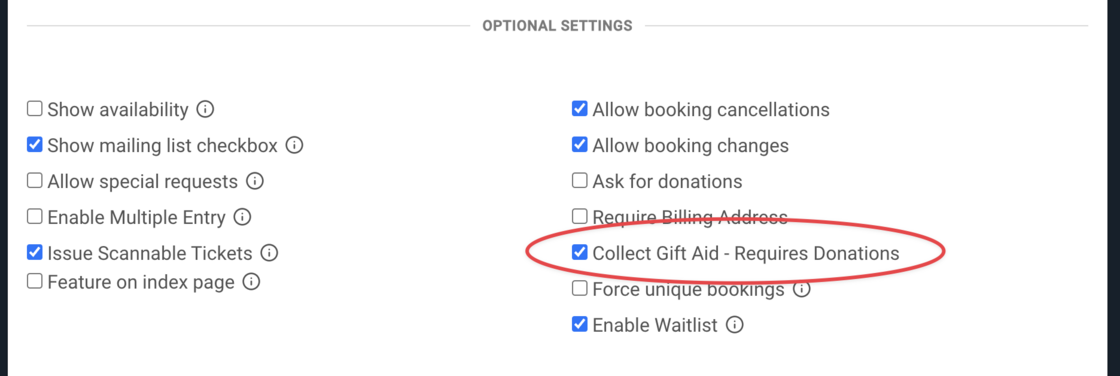
You can now enable Gift Aid collection for those based int he UK collecting Donations. If your account is registered in the UK, simple click 'Collect Gift Aid' in the Settings of the associated Event.
Turning this setting ON will show a Gift Aid collection box on the first page of the booking process. In order to enable this box you MUST also enable Donations in your Event Settings.
When a user checks this box, they will be require to enter their billing address on the checkout page if they have decided to donate.
Fixed
Reports indicated that accounts were being assigned a default space with no Events. The default Space you are assigned is now linked the the events you are a member of. If you only have access to a single event, your default space is now the associated Space with that Event.
Booking Link Upgrades and Improved App Performance
New
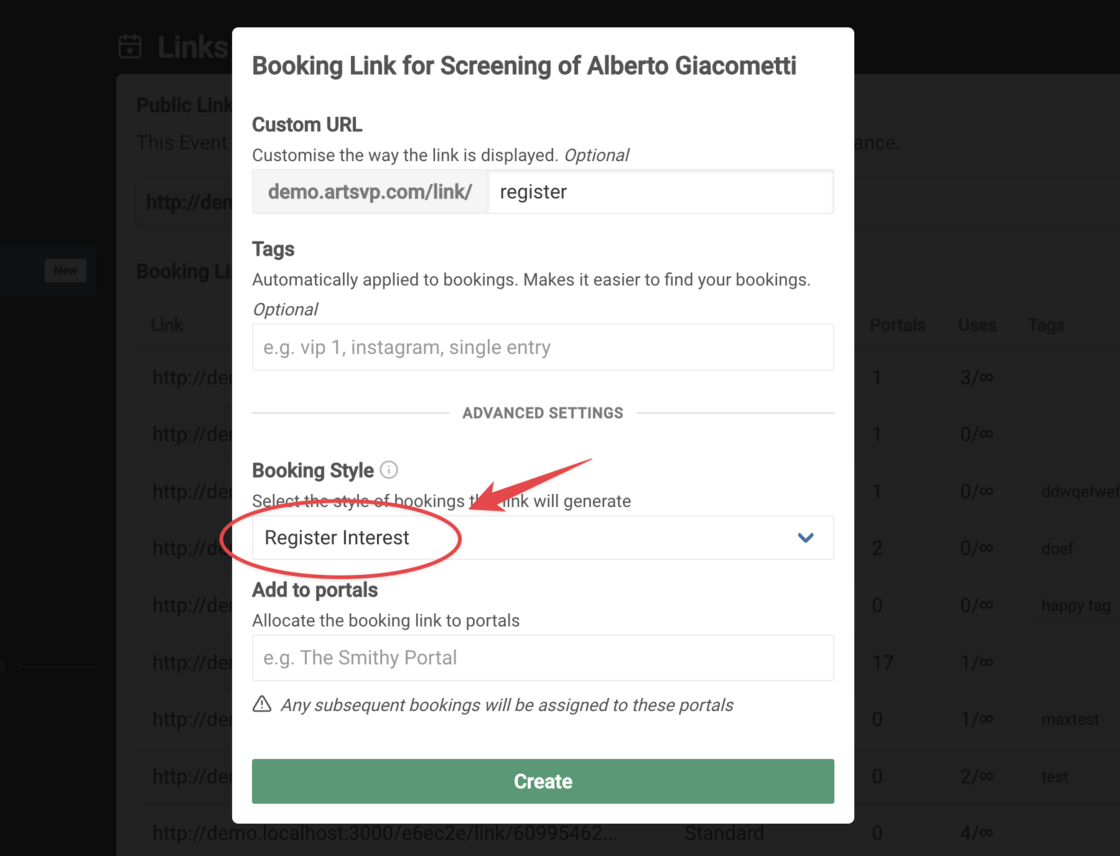
Mark Booking Links as 'Register Interest'
You can now configure your links to be Register Interest links. Register Interest links will mark a booking as 'registered' in your list of bookings. You then have control to Accept or Reject bookings manually.
⚠️ As a result, we have sunset 'register interest' Invites
New
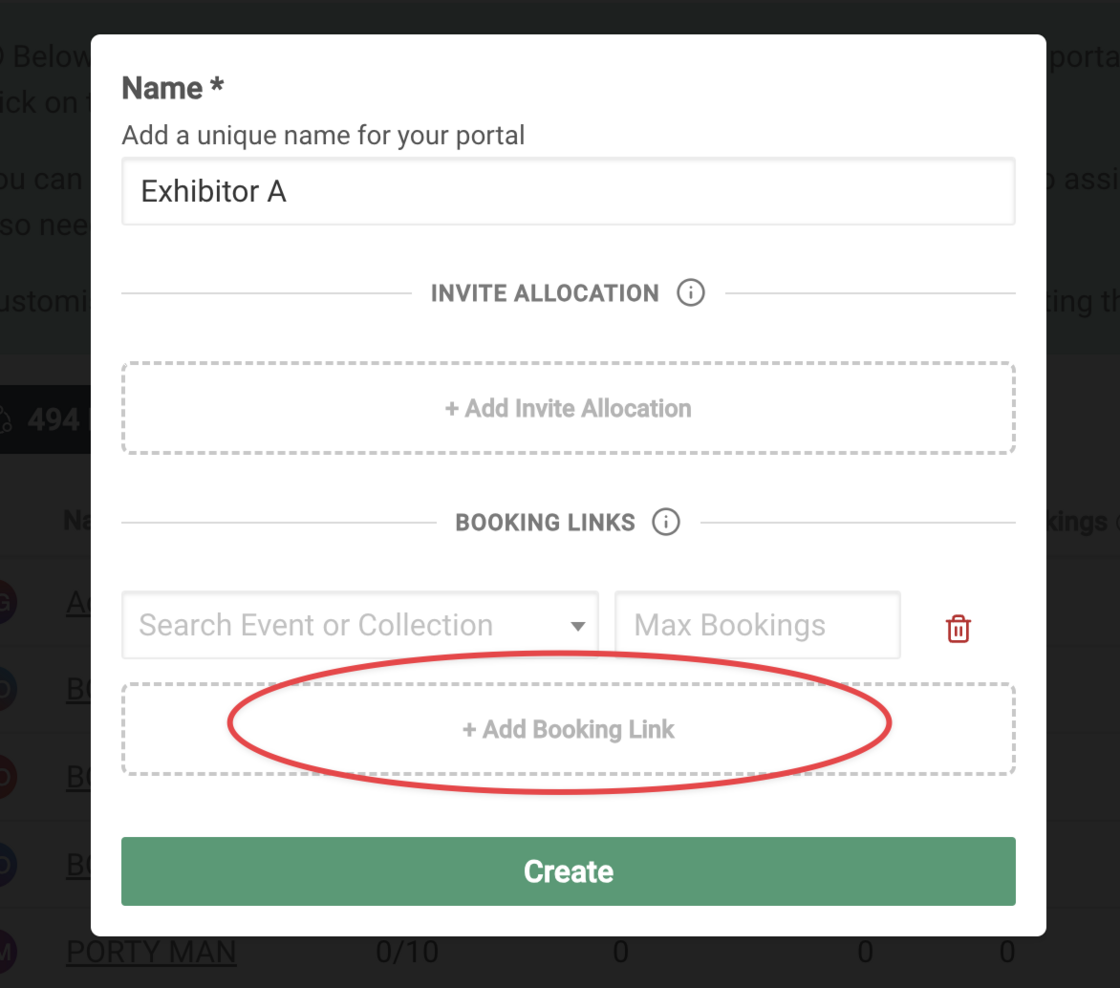
Create unique Booking Links for Portals
You now have the ability to create a unique Booking Link for each of your Exhibitor Portals. The Exhibitor will then see the link in their Portal and any subsequent bookings made via the link will show up in the bookings tab for the Exhibitor.
⚠️ If you assign multiple Portals to a single Booking Link, all portals will gain access to any bookings made via this link.
Improved
Much faster booking list load time
We have significantly improved the performance of our Booking List page load times. In some instances we are seeing a 500% increase in speed.
Improved
Personalised messaging
Our personalise feature to add custom content in your messaging such as {{name}} and {{email}} has now been improved to support {{first_name}} and {{last_name}}
Fixed
Filtering your Bookings via Tags now takes your search and date queries into account
API Protection, Booking Links & Fixes
Improved
API Rate Limiting protection has been improved. If your API requests 'Overheat' (hit the rate limits) constantly for over 60 minutes, API keys will temporarily be disabled for 24hrs. This added protection on DDOS attacks and ensures, should your key get in the hands of an attacker, your data is protected.
Booking Link details no appear in the CSV download for all bookings.
Fixed
Turning On/Off Donations and Billing Address collection fix
Turning On/Off Passwords for an event fix
12th April 2024
New
New Pricing Structure
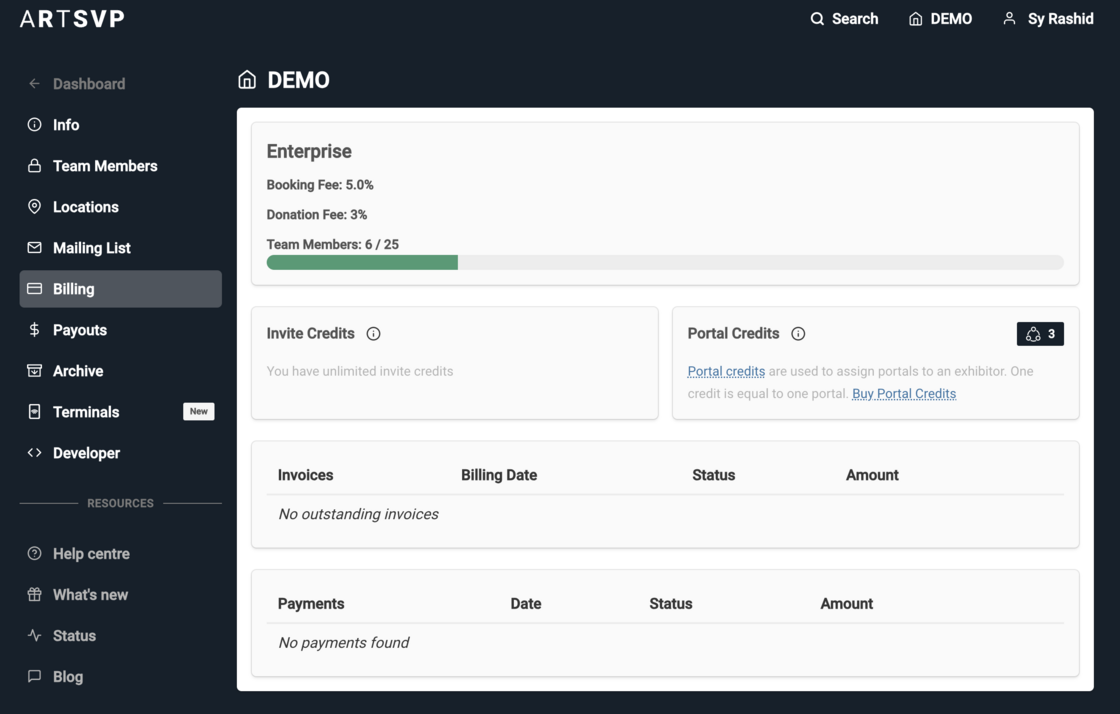
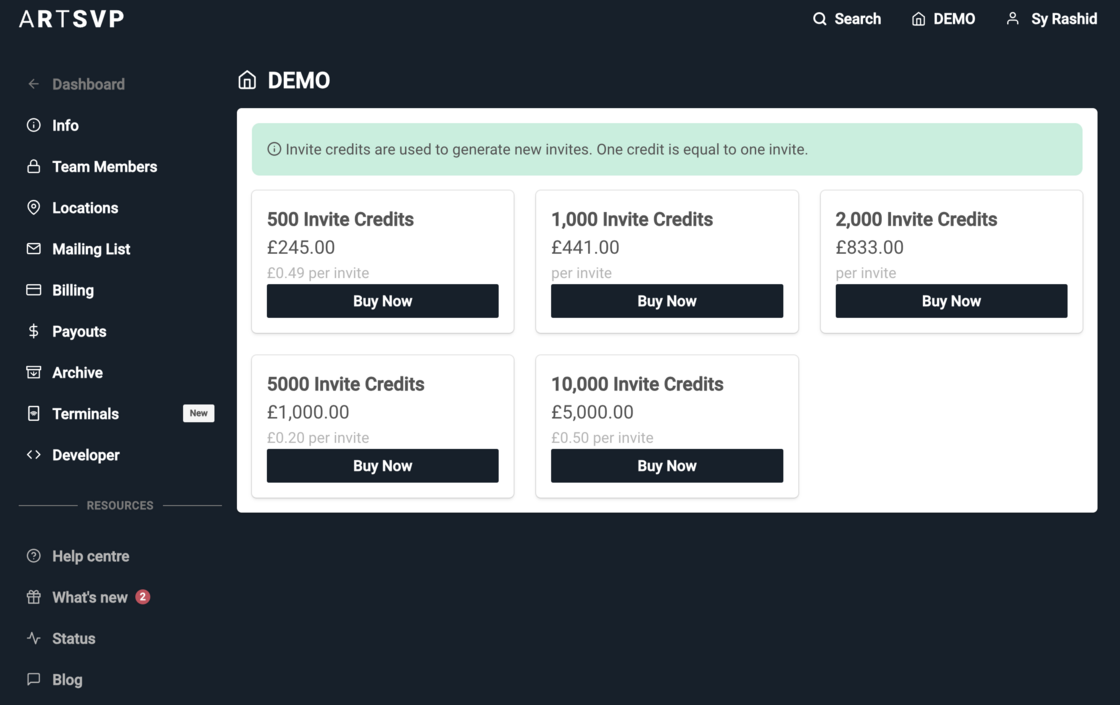
To make ARTSVP even easier to use we've modified our pricing structure to a simpler usage-based model. This means no more dealing with invoices back and forth or waiting for contracts to be signed before you can get off the ground and start managing your events. With this new change, all accounts will now have access to the full suite of ARTSVP features, but will pay for our VIP features of invites and portals on an as you need basis.
All the information you'll need to self manage your account will be on your billing dashboard as seen above. From here you'll be able to quickly purchase the invites or portals you need for your event through Stripe. All new and existing accounts (with exceptions) will automatically be given 100 free invites to continue using the platform, and 3 portals to test the feature, if you need more simply click the top right icon to purchase more.
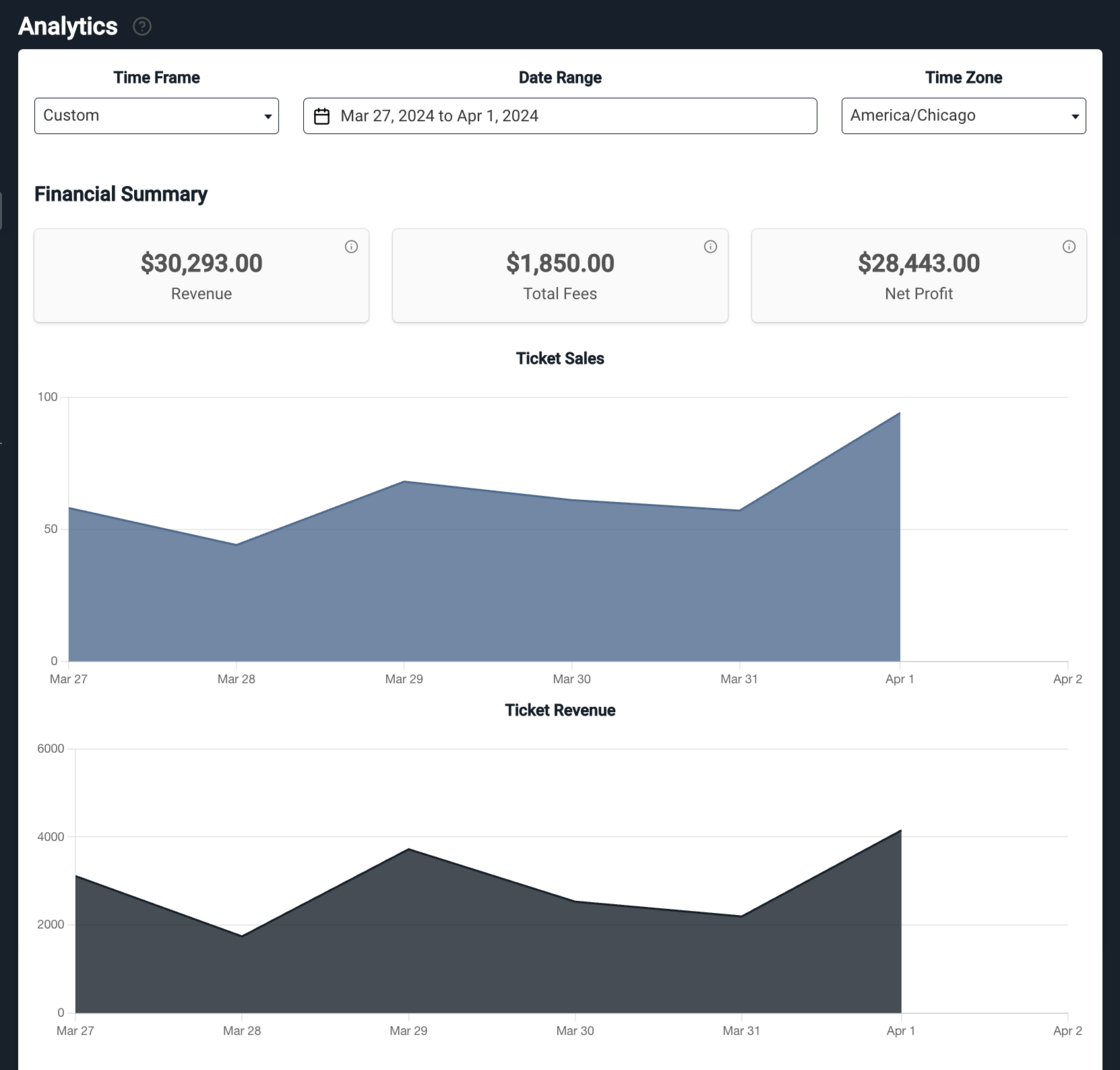
Better Financial Insights
To provide better insight into ticket sales and revenues, two new charts have been added in the analytics view for a space. These two charts provide insights on buying patterns and trends to help you make better decisions related to marketing campaigns, mailers, etc. See for yourself here.
Improved
Better CSV handling for header rows and Portal CSV uploads
Custom subdomains now available and live for everyone (Invite and Bookings Links will be prefixed with your Organisation slug for a more personalised experience)
Donation fees are split at a transaction level separate from Booking fees
Turning Bookings on and off for Events now available on mobile
Event cards now display on and off status
Improved scanner UX for Single Entry CheckIns
Improved data privacy for Portals
Error logs provided on Invite downloads
Customisable fields are now resetable
Improved ticket printing from emails
Fixed
Copy link button in booking links
Mobile navbar for spaces dashboard
Unmailable count fix for invites
25th March 2024
New
Take Payments at the Door!
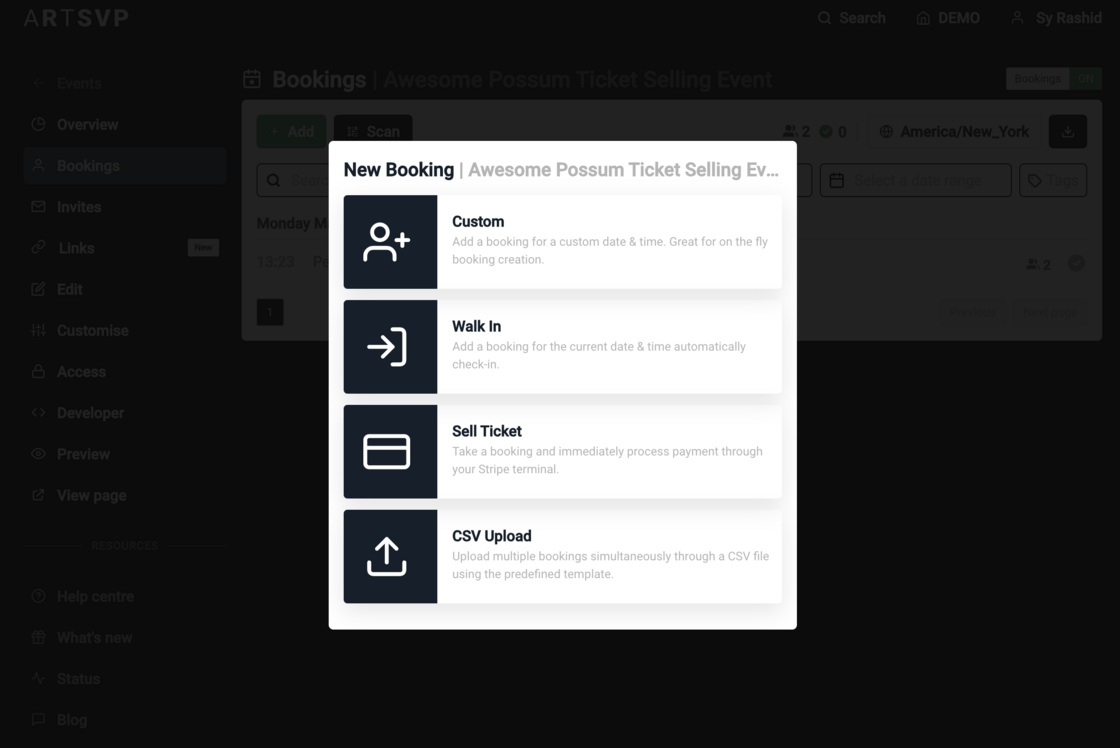
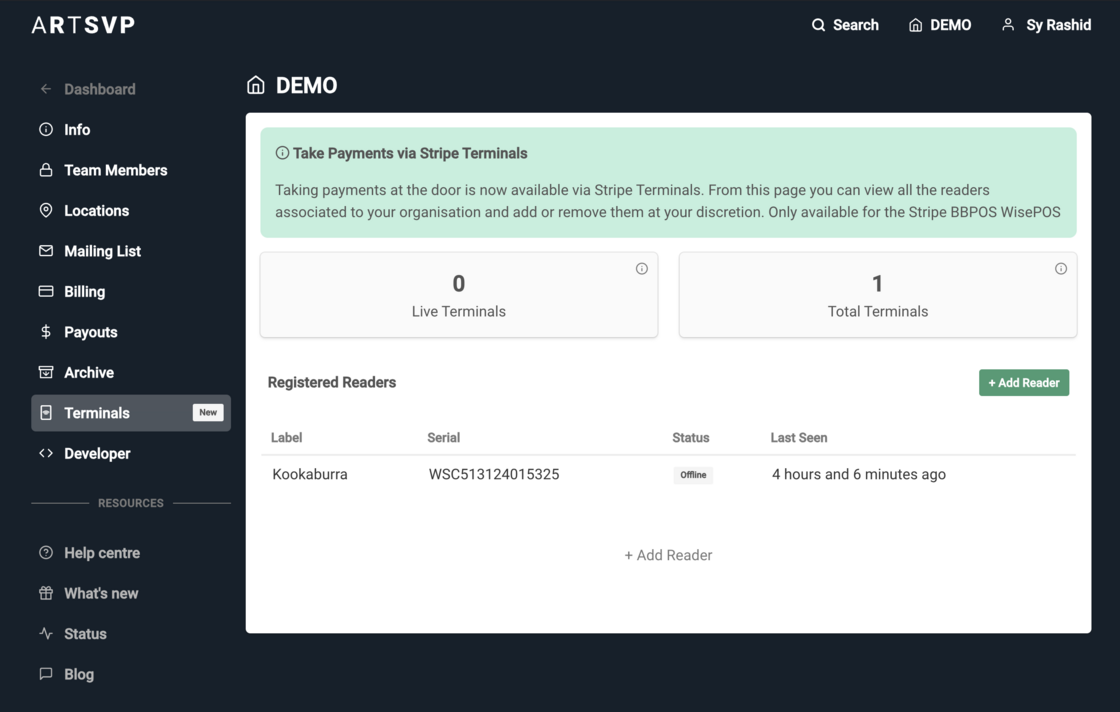
We're beta launching our latest product feature, Stripe POS terminal integrations. What does this mean for you? Bygone are the days of having customers queue up at the door buying tickets through the ARTSVP site. Instead, your front of house staff will be able to take bookings right there on the spot and process payments immediately through the use of Stripe BBPOS WisePOS E terminals.
Integration is as simple as requesting you'd like to take part in our new feature here. Once we confirm your request, you'll order as many terminals as you need for your event and register the device(s) through our site.
17th March 2024
Improved
Event Invites when completed will now redirect to the booking confirmation. Collection Invites will offer a similar capability but via a dashboard with all the events in the collection.