CSV Upload template updated for Register Interest bookings
Fixed
Removed case sensitivity when filtering by tags
Improved CSV Upload errors for blank columns
All Bookings view updated to reflect Time Zone when over multiple days
23rd February 2024
Improved
"All Bookings" now filterable by tags
New web hook events available for "event.created" & "event.updated"
API endpoint for events include location name and location address
Fixed
Time zones now required for locations
Dashboard booking count fix
Dashboard event reference name fix
API endpoint for invite bug fix
16th February 2024
New
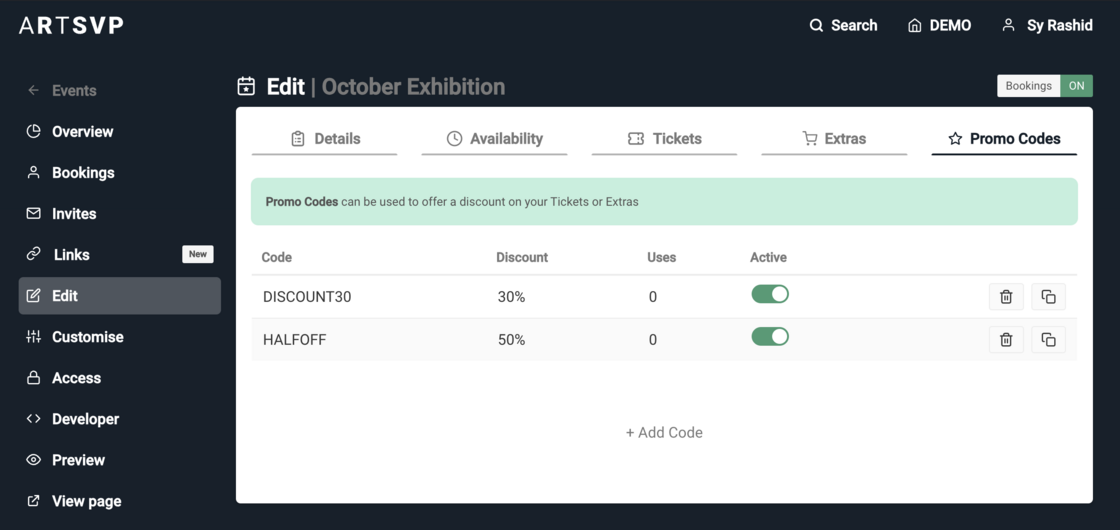
Promo Codes Launched
We're excited to announce the launch of our new percentage-based promo codes! This feature allows users to apply a single discount code you've set to take a percentage off the final booking price (excludes donations, one promotional code per booking allowed).
Whether it's a special promotion or a reward for VIPs, you can configure multiple promo codes per event with varying percentages. Manage promo codes and track usage in the Edit section for your event under the Promo Codes tab.
Improved
API Docs refresh
Additional filtering capabilities for API with resource_tags
Improved security against file enumeration
Fixed
upload tag bug, added upload tags to csv uploads for bookings
13th February 2024
Improved
Zoomable QR codes on tickets
"View Ticket/Manage Ticket" button added to emails
Improved download speeds
Automatic unique tags added after csv or contact list invite creation
Fixed
Changelog notification badge
Waitlist for paid events disabled
Activity log display fixes
8th February 2024
New
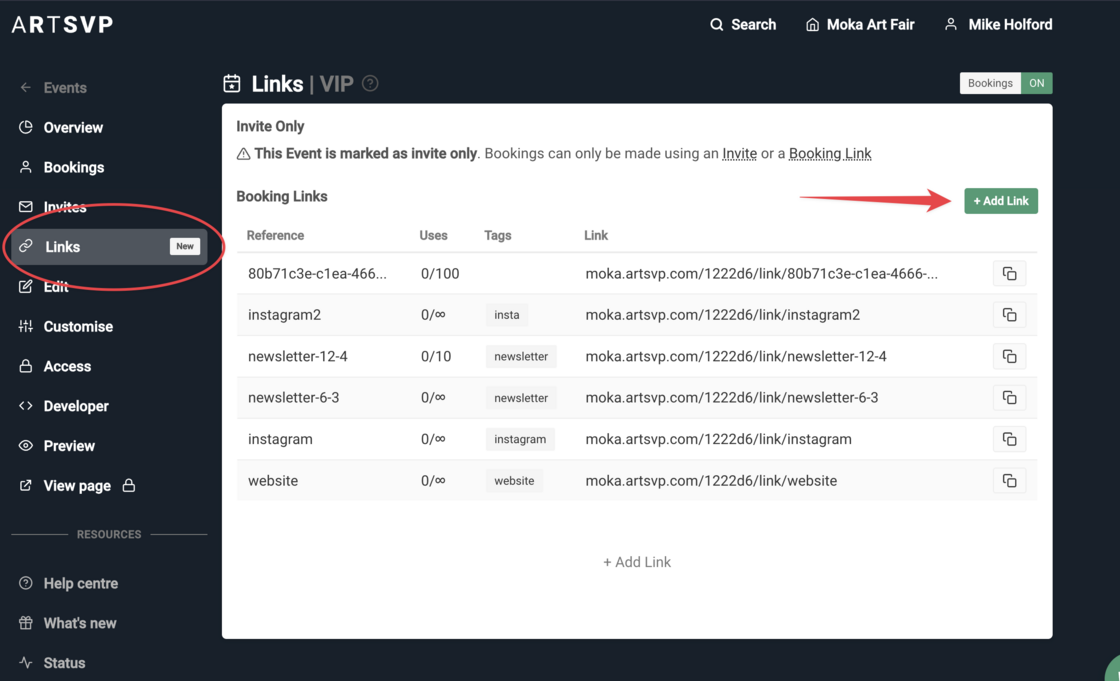
Introducing Booking Links 🔗
Previously, we offered 'multi-use' Invites for the purpose of tracking booking sources or as a way of offering exhibitors a link to share with their clients (capped at a maximum number of bookings). However, we found that this caused confusion about the purpose of an 'Invite' and have decided to redefine Invites to be exclusively used for individuals. Invites provide a highly personalised booking experience and can be conveniently sent through the ARTSVP platform so are best suited for specific people.
We have sunset ‘Multi Use Invites’ and replaced them with Booking Links.
If you want to quickly create a link to track the booking source for your Event or Collection (e.g. Instagram, Newsletter, etc.), you should use a Booking Link. Simply create a custom name for the link, such as 'VIP', so that your link looks like fair.artsvp.com/xxx/link/vip.
You can also use Booking Links to allow partners, exhibitors, or anyone else to book your event (without an invite) and control the number of bookings that can be made through the link.
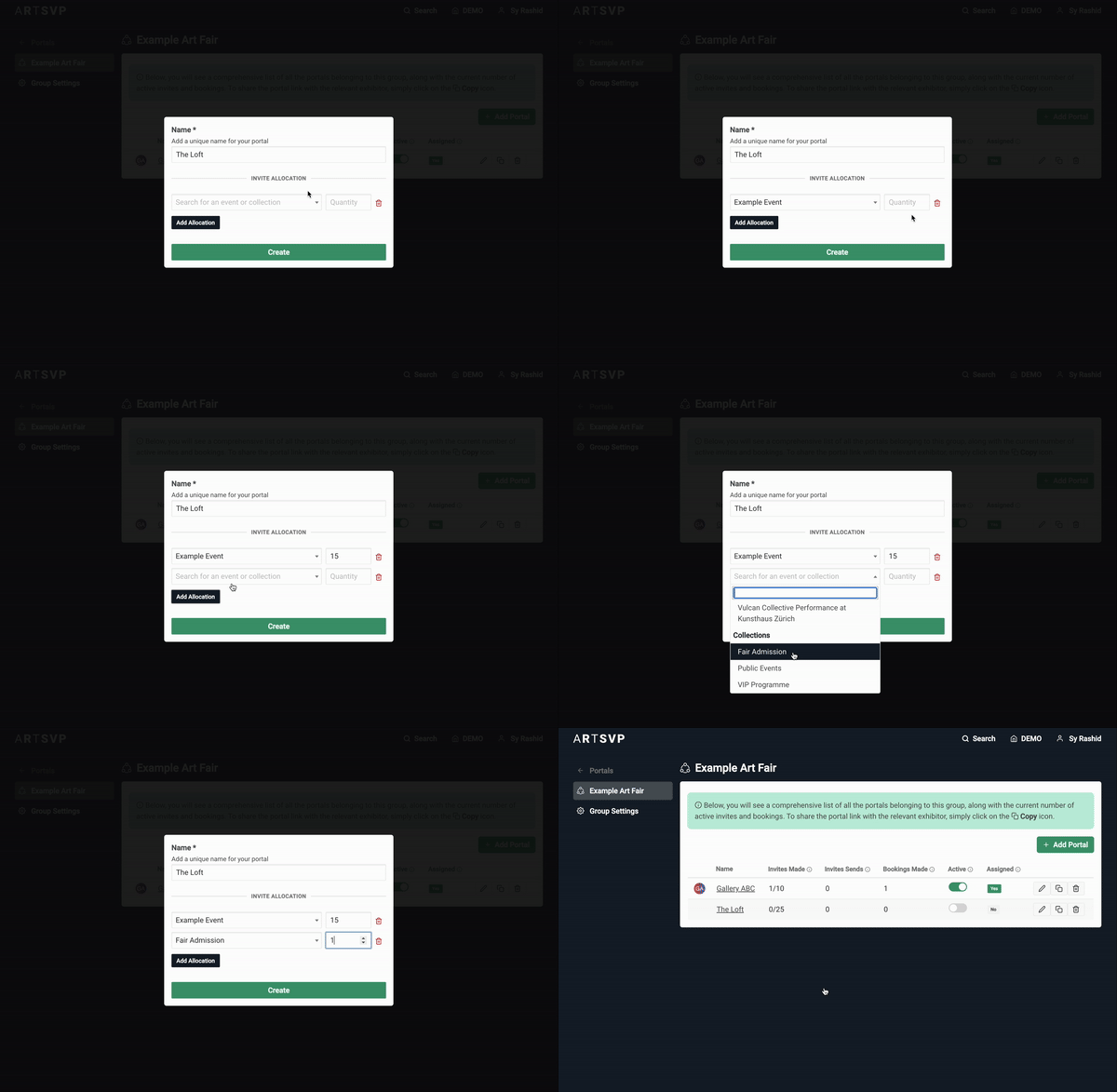
This week, we've made significant enhancements to our Exhibitor Portals.
Program Invites for Exhibitor Portals thru Collections
In the past, Exhibitor Portals were limited to inviting guests solely to Events. However, with our latest feature, exhibitors can now extend invitations to guests for a variety of occasions, including entire VIP Programs. Allocating these invites for fairs has never been easier, thanks to an improved allocation interface for both Collections and Events.
Improved
De-duplication of bookings made using portal invites
Time Zone selection in All Bookings view
Dynamic Collection Invite use count, eliminating the need for tedious manual updates
Inline tag editing for Invites
Fixed
Fixed a single-invite deletion issue
Pagination fixes applied across multiple pages
Resolved a bug related to minimum booking size
Timezone setting bug fixes
January, 2024
As the year kicks off, the team has made the resolution to be more active on the changelog. We love sharing what we've been building, and you've been knocking down our doors asking what we've been up to, so it only seems appropriate. Expect to hear from us weekly as we share all the new features, improvements, and fixes we're making here at ARTSVP.
New
Feature Updates
Some major improvements that have been made over the last couple months
Spaces
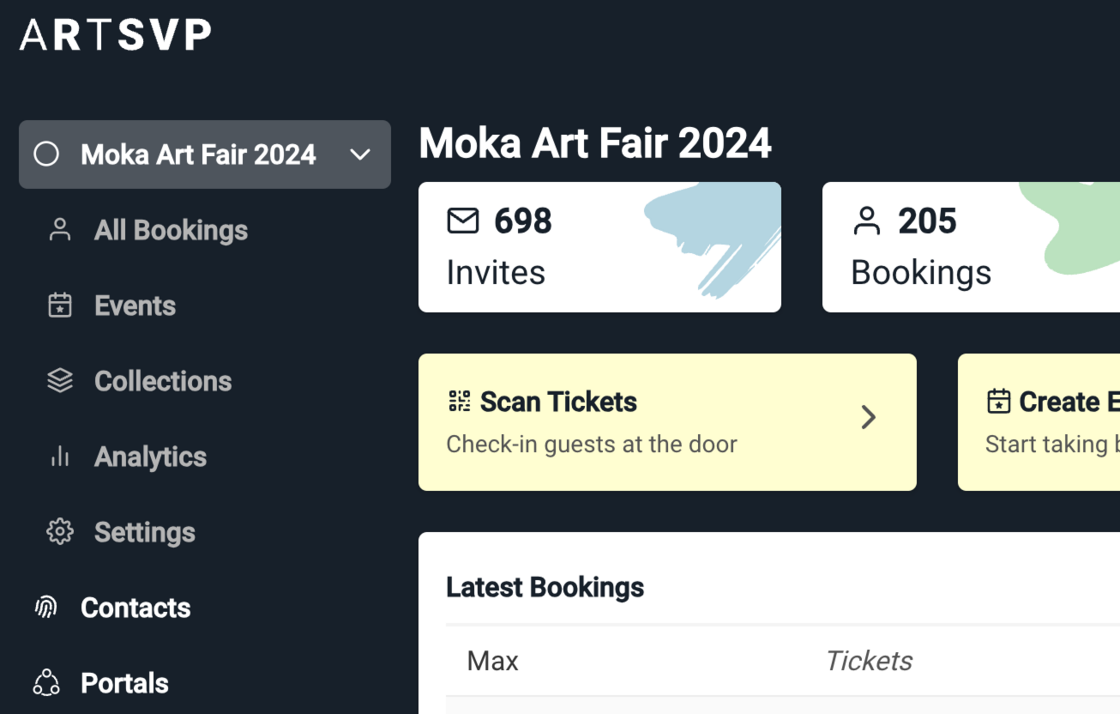
Events and Collections are now organised into Spaces. You can create new ones or swap the space you are in with the dropdown on the left side of your screen. Feel free to use them as you wish. We recommend creating a new Space for each Art Fair you run.
Contact Management
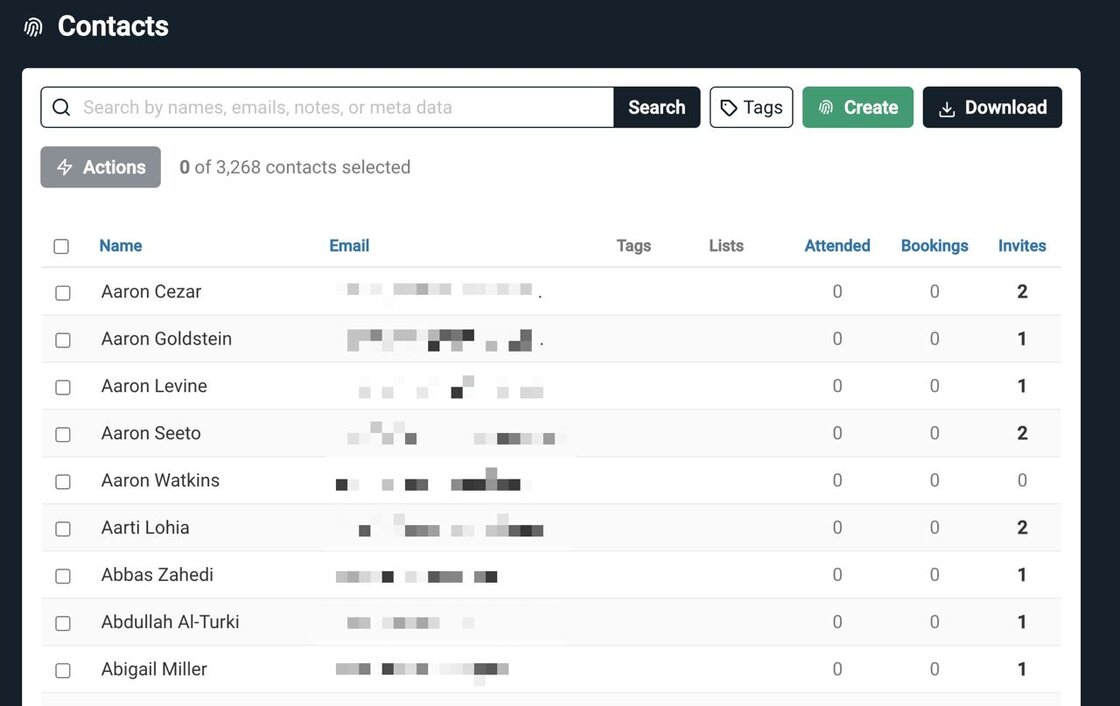
Users can now manage their contacts seamlessly through ARTSVP. With contacts; quickly curate lists for invites, tag and add notes for personalisation, and track activity across fairs and events. Request Access.
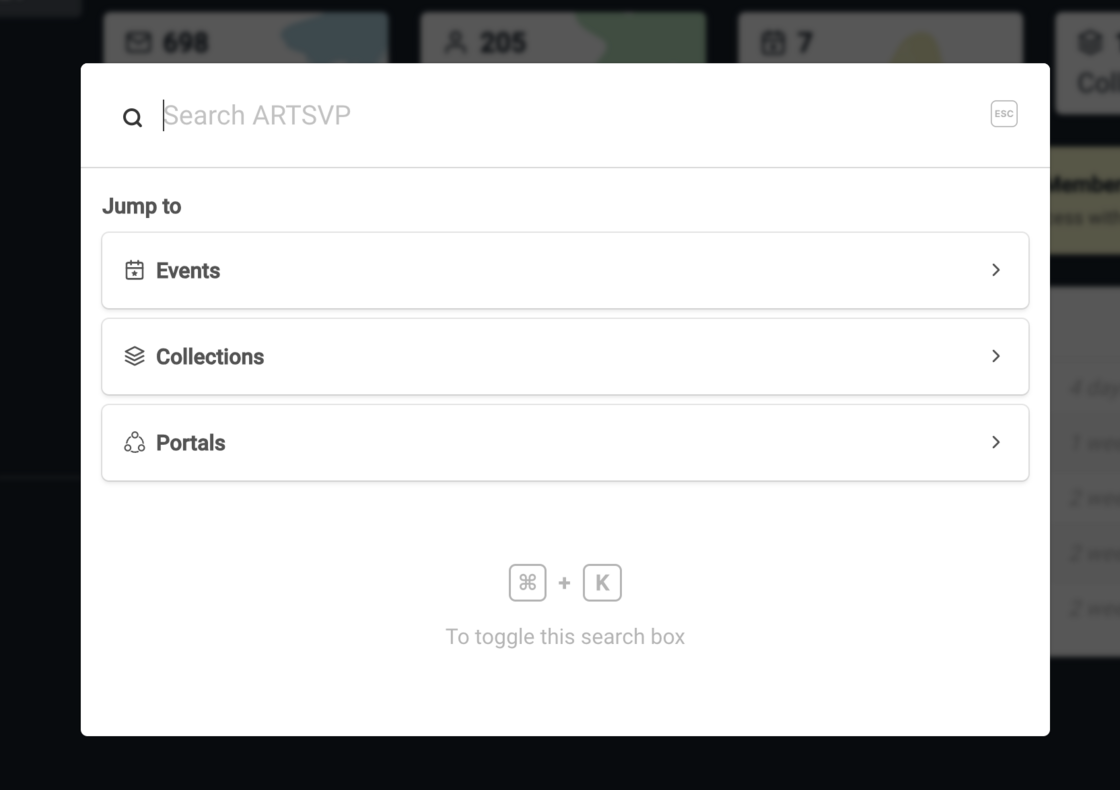
Global Search
Click 'Search' in the navbar or simply use CMD/CTRL + K on your keyboard to bring up global search. This will search everything within the current space you are in.
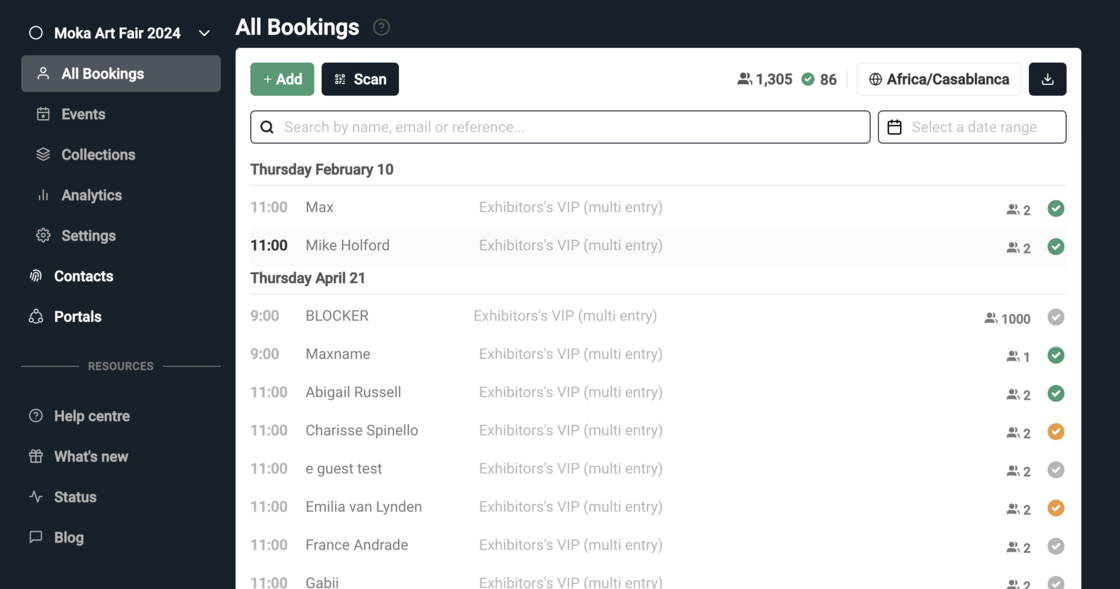
All Bookings View
No longer do you have to click on an Event or Collection to view the bookings. Simple go to the All Bookings view to search, filter and download the bookings you need.
Improved
Search for Contacts and Bookings is now 10 x faster!
Collection banners are now css customisable
Guest scanning security, QR codes unique to name and email
Fixed
Booking slot update 500 error
"Copy Scanner Link" for scan configuration
June 2023 Update
New
Feature Updates
Add to Wallet
Guests can now effortlessly store their tickets in their smartphone wallet for easy access and quick entry scanning. See how it works with an example pass for Apple Wallet or Google Wallet
Banners
All users now have the functionality to enhance their booking pages with banners. Additionally, you can now personalize confirmation and reminder emails by adding a banner image at the top. Find out more.
Event Waitlists
Now, visitors have the option to join a waitlist for fully booked events or time slots, providing an effective method to expand your mailing list. Additionally, these waitlist bookings can be swiftly confirmed if capacity increases or cancellations occur. Find out more.
Unique bookings
Prevent repeat bookings for the same event by enforcing a 'one booking per email' policy. This keeps your data clean by reducing the likelihood of multiple reservations for the same event. Find out more.
Accept Donations
Are you a charity? Looking for an easy way to handle donations when clients attend your events? You can now accept donations in addition to selling Tickets on the same page. Request access.
Premium Features
Sending invites
You can now send personalized invitations directly from ARTSVP. Inviting VIPs is fast, with the added benefits of high deliverability and easy reminders to book. Request access.
Exhibitor Portals
Enable your exhibitors to send their own invites and monitor their guests' attendance at the fair with a real-time exhibitor portal. This not only resolves GDPR issues but also reduces the need for galleries to request names to be added to the list. Find out more.
Technical Updates
The team has worked hard at enhancing our API by structuring JSON outputs across the board, expanding our range of endpoints and providing brand new documentation.
You may have also noticed some in-app speed improvements as we make continuous efforts to optimize pages that are event-critical. The Bookings view for each event now supports skeleton loading and a 5x speed increase on loading booking data.
Unique Bookings
New
This week we're rolling out Unique Bookings. You can now restrict events to only allow bookings from unique emails. No more double bookings!
Turn on/off for any event in your event settings
Only allows one booking per email address
Works with personalised invites (locked to an email)
Use in conjunction with Invites and Collections to allow users to book once each for a selection of events.
As always, let us know what you think of this feature via live chat 😊
Introducing ARTSVP.COM
New
You may not have noticed, but we are now officially running on artsvp.com instead of .co! All of your previous links (bookings, invites, accounts etc..) will still work on the old domain but will be redirected to our new .com.
If you have any questions get in touch with our team in the chat box bottom right 😊